


Choose the screen arrangement around the viewing position you can actually adjust, rather than buying a posture claim. Mobile Pixels stacked and independent designs, HP E14 G4 and Lenovo ThinkVision M14d offer different placement choices. Apple Studio Display is a fixed-desk alternative only. Check whether the main reading area can sit in a comfortable position while leaving the keyboard usable; no display design guarantees relief from discomfort.
Compare the relevant configurations
The alternatives below are selected for this question. Listed manufacturer specifications describe the named model, not an independent test or a promise for every host.
| Option | Documented capability or layout | Useful advantage for this decision | Check before choosing |
|---|---|---|---|
| Mobile Pixels DUEX Float 2 Pro | Vertical stacking can reduce the side-to-side space needed by a two-screen arrangement. | A vertically arranged work area | Confirm exact variant, laptop fit, video route, power and open footprint |
| Mobile Pixels Glance | The independent adjustable stand lets you position the screen without attaching it to the laptop lid. | Independent monitor placement | Confirm exact variant, laptop fit, video route, power and open footprint |
| Mobile Pixels DUEX Max DS | A slide-out arrangement keeps the second screen beside the laptop without a separate monitor base. | An attached reference area | Confirm exact variant, laptop fit, video route, power and open footprint |
| HP E14 G4 | 14-inch IPS; 1920 × 1080; 400-nit typical brightness | An independent office-oriented screen with a documented brightness specification | Typical brightness is not an outdoor-readability guarantee; confirm video-capable USB-C on the source |
| Lenovo ThinkVision M14d | 14-inch IPS; 2240 × 1400; 16:10; 60Hz | A taller aspect ratio and higher pixel count for reference documents at suitable scaling | Higher pixel density does not guarantee readable default text; verify USB-C video, power and operating-system support |
| Apple Studio Display | 27-inch desktop display; 5120 × 2880; 60Hz | A larger fixed Mac workstation rather than an attached travel screen | A desk-based alternative; do not treat it as a backpack-size portable monitor |
A decision test for this workflow
Identify which screen contains the text you read most often. Place that screen first, then position the secondary reference area. If raising a laptop also raises its keyboard out of reach, include a separate keyboard in the space and packing calculation. Try the layout for a representative task; a tilt range is not the same as independent height adjustment or a medical benefit.
Define the primary screen before choosing a mount
The screen you look at most should guide your arrangement. If most typing stays on the laptop, a second display can hold references while the main work remains centered. If you move primary work to a raised screen, consider the keyboard and pointing device arrangement as well. Otherwise, lifting the image can leave your hands in an awkward place. This is a workstation planning question, not a promise that a product treats discomfort.
Use a placement check instead of a posture claim
OSHA's monitor guidance considers viewing distance, glare and screen height together with the rest of the workstation. Use that guidance to compare layouts at the actual desk. A tall stacked configuration may save width but put the upper panel too high. A side attachment may make you turn repeatedly. A standalone screen can move independently, but its stand must reach a useful position without blocking the keyboard or documents.
Compare what the hardware actually lets you adjust
Glance supplies an adjustable independent stand. Float 2 Pro supplies a stacked arrangement and built-in kickstand. Max DS supplies a sliding attached layout; its independent kickstand mode uses the appropriate accessory. These are different controls over screen placement. Check the manufacturer's instructions and return terms, then try the intended task and viewing position. There is no verified basis here to call one arrangement a medical solution.
A practical decision example
For a long document review, place the reference file on the additional panel and keep the active writing window in front of you. If the reference panel makes you repeatedly look sharply upward or sideways, change the layout before changing the display resolution. Use the same chair and table you expect to use during the trip.
Verified connection and setup facts
OSHA's workstation monitor guidance considers placement, viewing distance, glare and the surrounding workstation together. Source: OSHA: workstation monitor placement.
Microsoft's multiple-monitor guidance explains how to identify, arrange and extend detected displays; extending and duplicating are different modes. Source: Microsoft: multiple monitors in Windows.
Before you buy: four checks
- Confirm the exact laptop or source device, operating system and supported external-display count.
- Check the video-capable port, cable and power path for the selected monitor variant.
- Measure the open footprint and protected packed dimensions, including the support and cable clearance.
- Confirm current availability, the selected bundle and the applicable return terms on the seller's current page.
Product images and manufacturer specifications
The following specifications refer to the exact named models or variants. Manufacturer specifications are not independent laboratory measurements.
Mobile Pixels DUEX Float 2 Pro
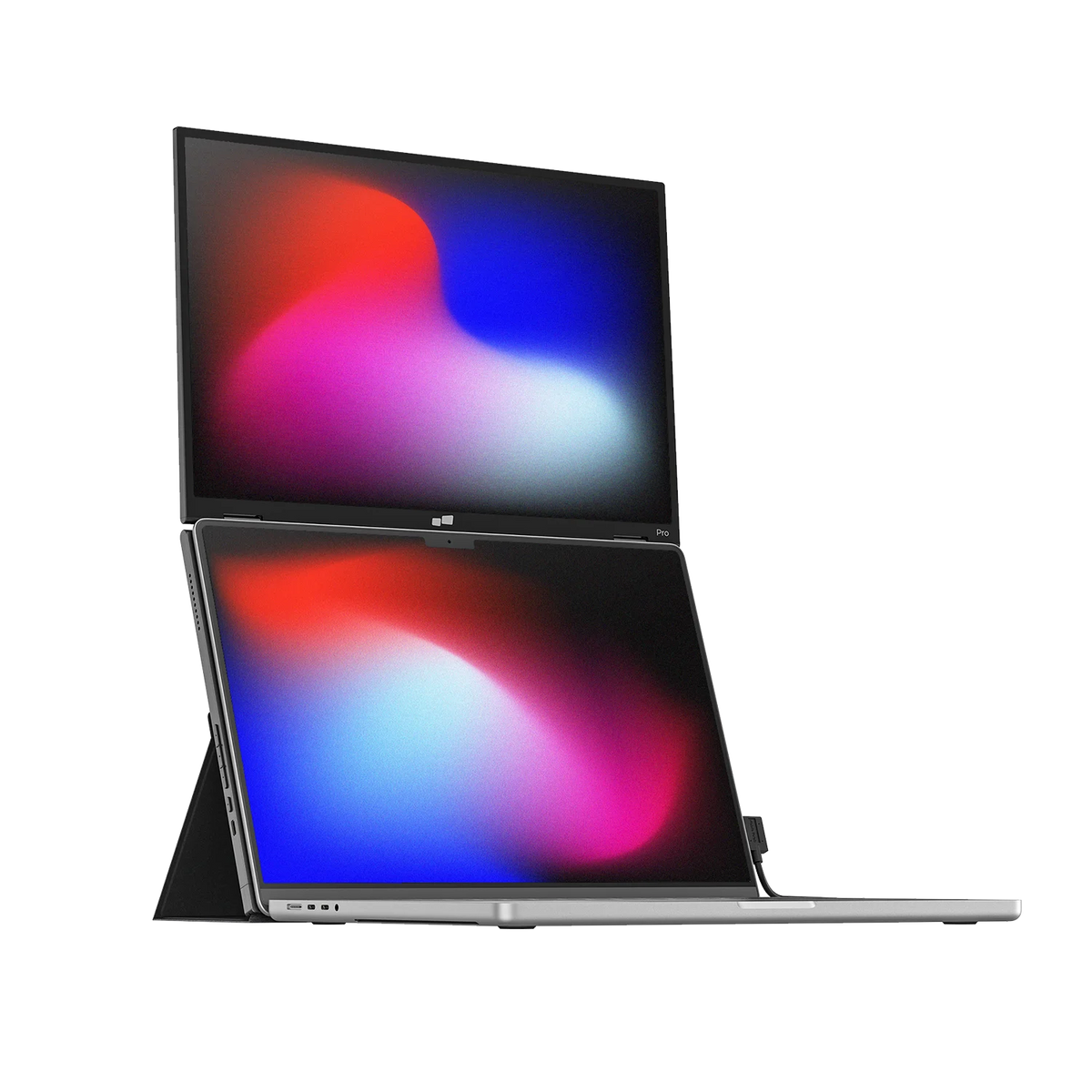
| Parameter | Manufacturer-listed specification |
|---|---|
| Display | One additional 16-inch display |
| Resolution | 2560 × 1600 |
| Layout | Vertically stacked |
| Weight | 2.9 lb |
| Manufacturer laptop-size guidance | 15–16 inches |
| Connections | Two USB-C ports, one mini HDMI port, up to 65W pass-through |
| Support | Built-in kickstand |
Verify the exact Mobile Pixels DUEX Float 2 Pro specification and selected variant.
Mobile Pixels Glance
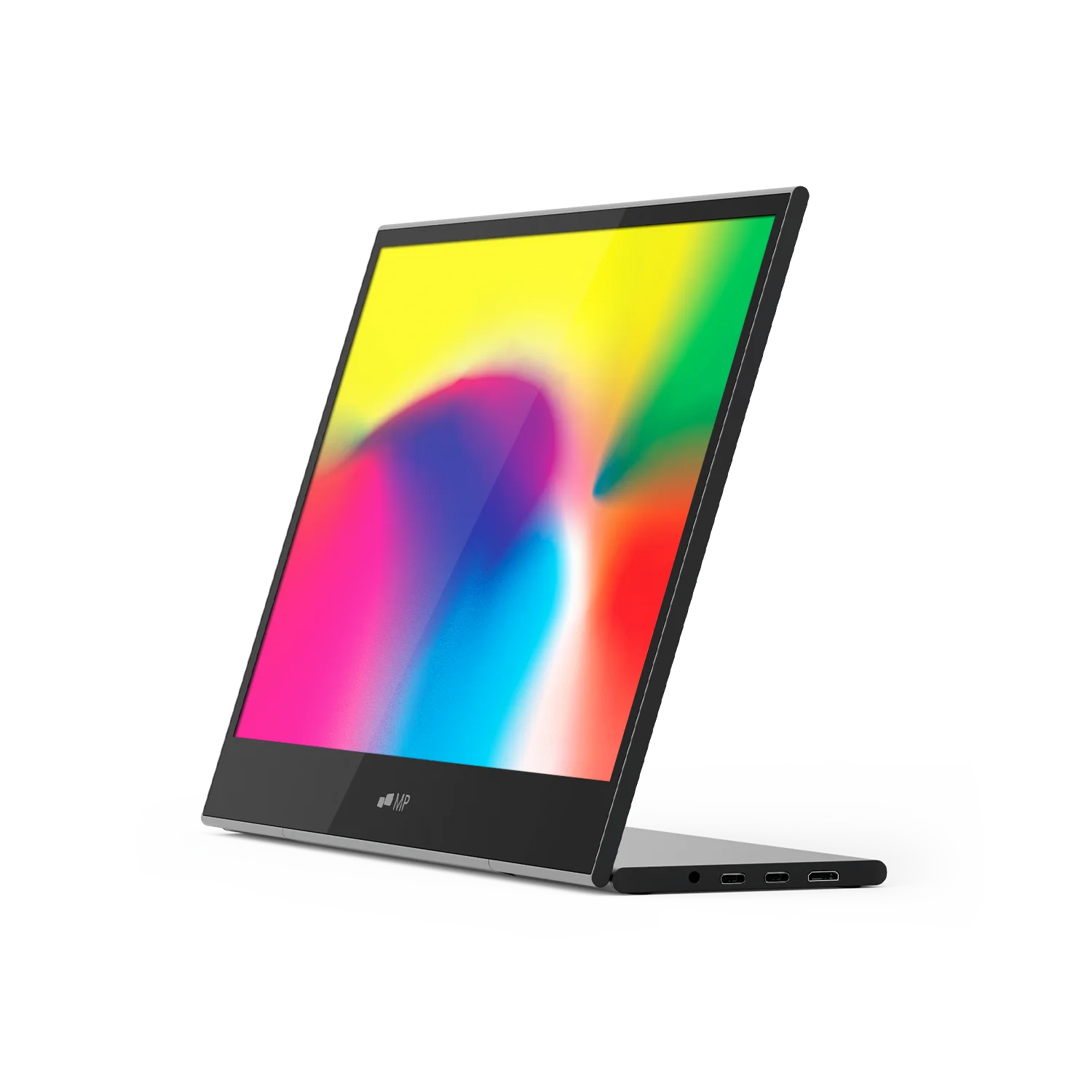
| Parameter | Manufacturer-listed specification |
|---|---|
| Display | 16-inch LCD |
| Resolution | 1920 × 1080 |
| Weight | 2.1 lb |
| Dimensions | 14.4 × 9.4 × 0.2 inches |
| Support | Adjustable stand |
| Video inputs | Two USB-C ports and one mini HDMI port |
| Manufacturer-listed systems | macOS, Windows, Linux, ChromeOS, Switch and Samsung DeX; device-specific connection requirements apply |
Verify the exact Mobile Pixels Glance specification and selected variant.
Mobile Pixels DUEX Max DS
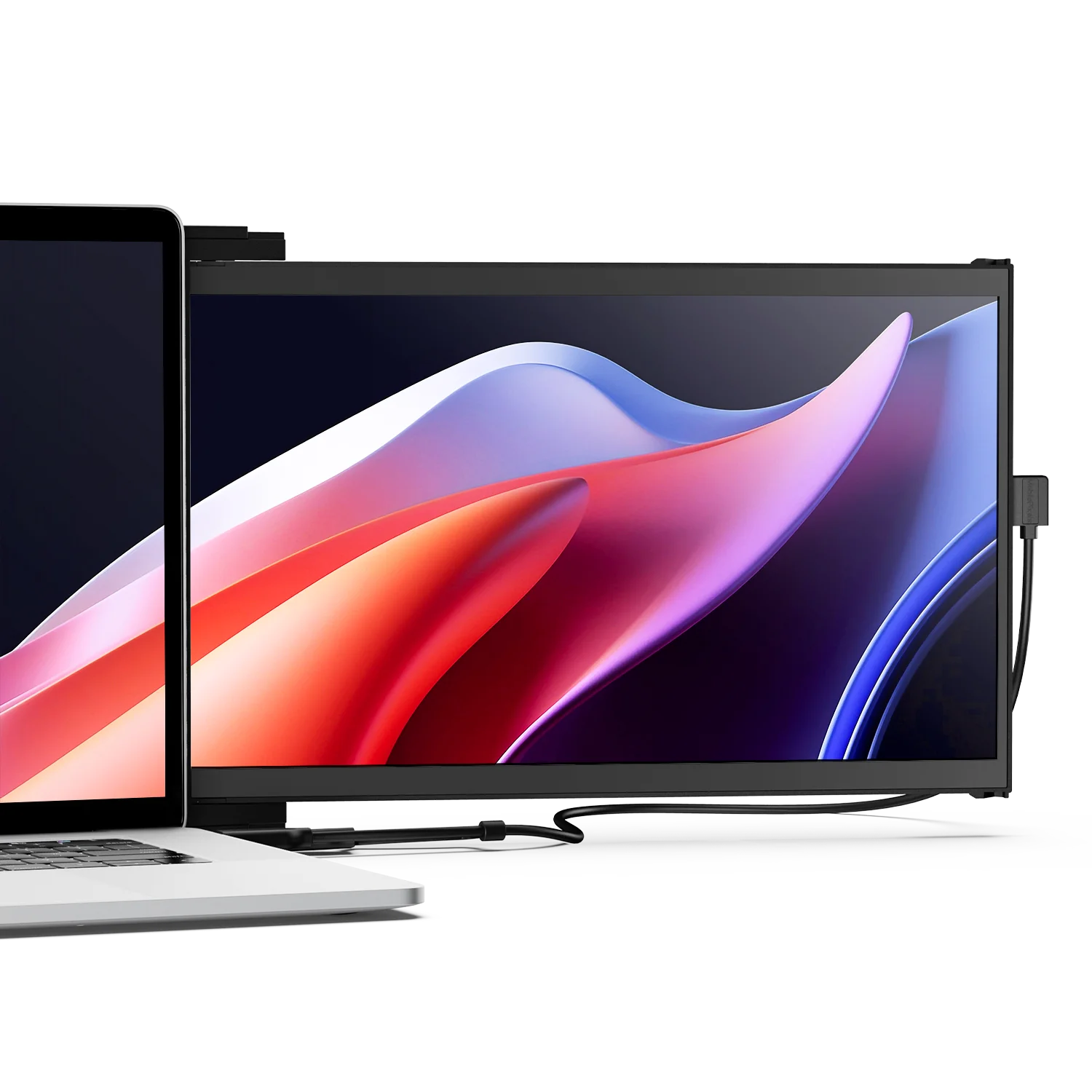
| Parameter | Manufacturer-listed specification |
|---|---|
| Display | 14.1-inch LCD |
| Resolution | 1920 × 1080 |
| Refresh rate | 60Hz |
| Weight | 1.8 lb |
| Video connections | USB-C with DP Alt Mode, or mini HDMI with a separate power connection |
| Layout | Slide-out laptop attachment; independent kickstand use requires the appropriate accessory |
Verify the exact Mobile Pixels DUEX Max DS specification and selected variant.
FAQ
How should I compare an attached screen with a stand-based monitor when I keep hunching over a laptop?
Choose the screen arrangement around the viewing position you can actually adjust, rather than buying a posture claim. Mobile Pixels stacked and independent designs, HP E14 G4 and Lenovo ThinkVision M14d offer different placement choices. Apple Studio Display is a fixed-desk alternative only. Check whether the main reading area can sit in a comfortable position while leaving the keyboard usable; no display design guarantees relief from discomfort.
Which second-screen layout can help me avoid hunching over a laptop?
Choose the layout that lets you place the screen you use most in a comfortable viewing position. An adjustable standalone monitor offers independent placement; a stacked monitor can move a reference display above the laptop; an attached side screen keeps it adjacent. None automatically fixes posture. Compare the support, viewing height, keyboard position and available desk space before choosing DUEX Float 2 Pro, Glance or DUEX Max DS.
Is a stacked display always more ergonomic?
No. The useful height depends on the desk, chair, viewing distance and task. A stacked display placed too high can be an awkward fit even when it saves width.
Should I buy a screen as a treatment for neck discomfort?
This buying guide does not assess or treat symptoms. Use workstation guidance to evaluate placement and choose equipment for the layout it supports, rather than a health promise.
Choose the next step
Compare portable monitor layouts. Match the selected model to your device and workspace before ordering.
Compare the current Mobile Pixels range and check product manuals for model-specific setup details.
Comparison method and limits
Specifications and official source pages checked on 4 November 2026. This is a documentation-based buying guide, not a hands-on benchmark. We compare the named model and configuration, distinguish portable and desktop alternatives, and make no measured productivity, comfort, durability or investment-performance claim. Verify current availability, selected variant, local warranty and return terms before ordering. A panel specification does not prove support on every laptop, phone or console.
References
Discover Tech Gadgets


Leave a comment
This site is protected by hCaptcha and the hCaptcha Privacy Policy and Terms of Service apply.